

Console Overview
Trumouse is an Agent-based platform. Data acquisition, live monitoring and result analysis all take place in the Trumouse Console. The Console runs on the Compute Unit and is used through a web browser.
The Agent panel on the right side of the Console lets you ask the Agent directly about the project’s records, regions and data quality. The platform’s Agent-based analysis and experiment workflows are described in Product Overview.
This part is written for the people running experiments: what each part of the screen does, where to click in normal use, and how to run an experiment from scratch and review its results.
Installing and configuring the software on the Compute Unit is done by the installer and is outside the scope of this manual.
The screenshots in this part were generated on a simulated arena: the mice in the camera image are white ellipses on a dark background, and the card reads, identities and environment data are simulated too. In real use you see the arena through the Industrial Camera and real data; the pages and buttons are the same. The red frames and numbered circles in the screenshots were added afterwards, and the list below each figure explains them by number.
Projects, Experiments and Records
Section titled “Projects, Experiments and Records”The Console organizes data in three levels: project → experiment → record.
Table: Console data levels
| Level | Meaning | Example |
|---|---|---|
| Project | One study, containing several experiments | Group-housing behavior |
| Experiment | One stretch of study of a group of mice in the arena, with its arena photo, regions, mouse roster and light schedule | Arena 1 · Batch 1 |
| Record | One acquisition within an experiment; each start-to-stop is a record | 20261019_204815_… |
Only one record can be in progress on a device at a time. While another experiment is recording, the New record button is unavailable and the experiment that is recording is named next to it.
Before a record starts, the mice must be registered. Once registered, the device tracks only those mice, and the list cannot be changed after the record starts.
Arena regions, the mouse roster and the light schedule can be changed at any time.
Logging In
Section titled “Logging In”On a computer networked with the Compute Unit, open the Console address provided by the installer in a web browser. The login page appears (Figure “Login page”).
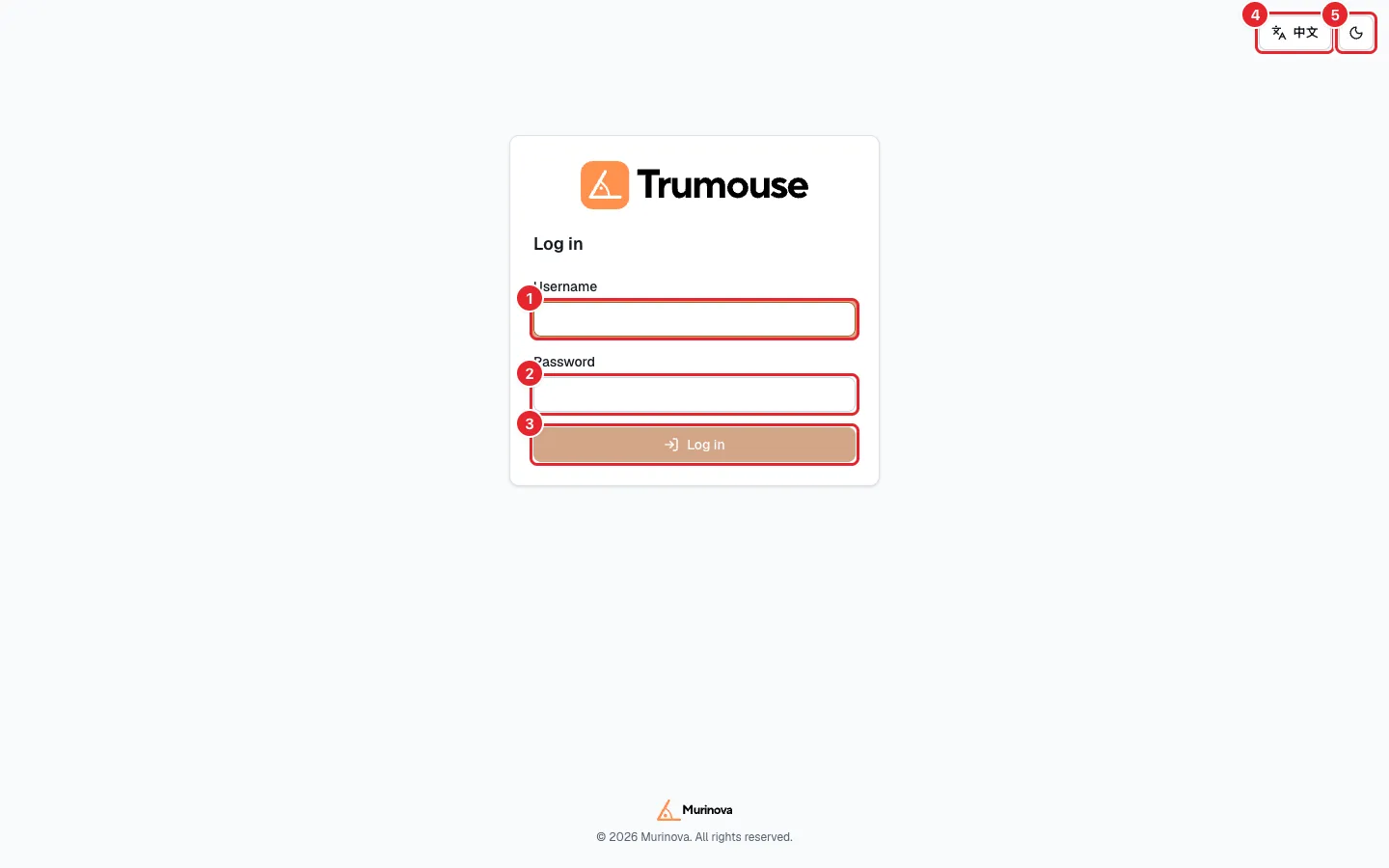
Figure: Login page
- Username.
- Password. The Console has a single account; the administrator sets the password.
- Log in. Available once both fields are filled in. After repeated failed attempts, you must wait before trying again; the page shows a countdown.
- Switch the language (Chinese or English).
- Switch between the light and dark themes.
Screen Layout
Section titled “Screen Layout”After logging in, the project list opens. On first use there are no projects yet (Figure “Project list (no projects yet)”).
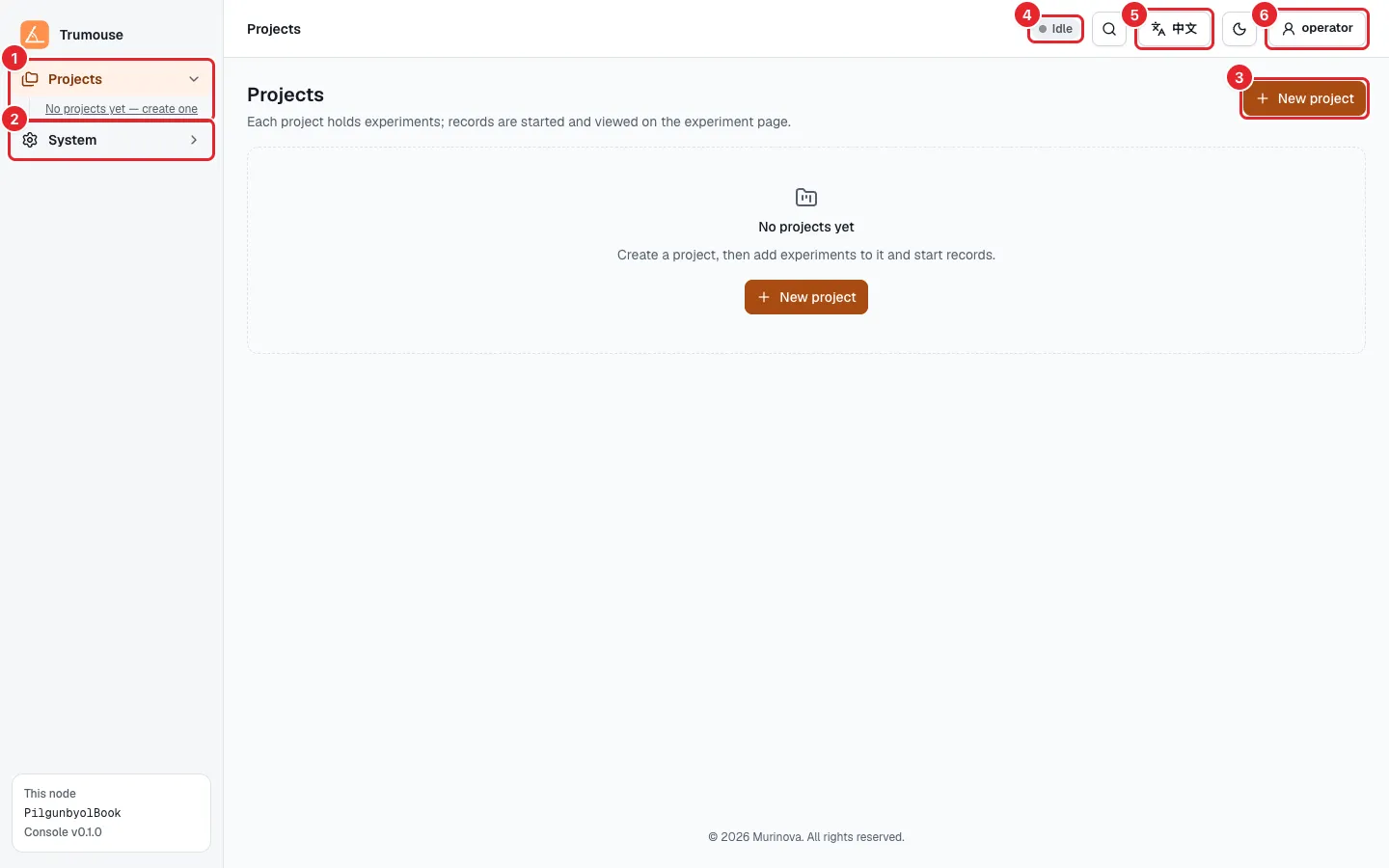
Figure: Project list (no projects yet)
- Projects: the project tree with all projects and their experiments. Click a name to open it; click the small arrow in front of it to expand or collapse. A green dot marks an experiment that is recording.
- System: account settings and similar pages; see System.
- New project; see Creating a Project.
- Current record status: Idle when nothing is recording; Recording and the experiment name while a record is in progress. Click it to go straight to that experiment.
- Language switch. The magnifier icon to its left opens the command palette (see Command Palette); the moon icon to its right switches between the light and dark themes.
- Account menu: change password, log out.
This node at the bottom left shows the Compute Unit’s host name and the Console version. Include them when reporting a problem.
The Agent panel on the right of the project page answers questions about the project’s records, regions and data quality. The Agent reads the region descriptions and mouse notes, so fill them in accurately. The model service the Agent uses is set by the administrator under System; see System.
Settings Configured at Delivery
Section titled “Settings Configured at Delivery”The Industrial Camera, the layout of the LF Reader Modules, the RFID connection, the arena size and the acquisition parameters (frame rate, exposure, inference and so on) are configured by the installer when the system is delivered and remain unchanged afterwards. Running experiments neither requires nor permits changing them, and the experiment pages do not show them. If an adjustment is needed (for example, the Industrial Camera is replaced or the arena has changed), contact the administrator.
To enter the advanced settings, click the Murinova logo in the top-left corner 10 times in a row. The page prompts you that advanced mode is being entered. In advanced mode, device parameters and similar settings can be configured.