

Running an Experiment
This chapter walks through the complete workflow in order: create a project → create an experiment and take an arena photo → mark regions → register mice → check the light schedule → start a record → watch the live monitor → stop the record. Reviewing the results after stopping is described in Results and Data Export.
Creating a Project
Section titled “Creating a Project”In the project list, click New project (Figure “New project”).
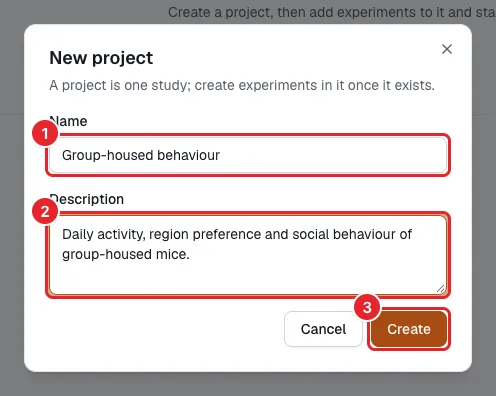
Figure: New project
- Name: required. Names must be unique at the same level (case-insensitive).
- Description: optional; describe the aim of the study.
- Create: opens the new project page (Figure “The new project page”).
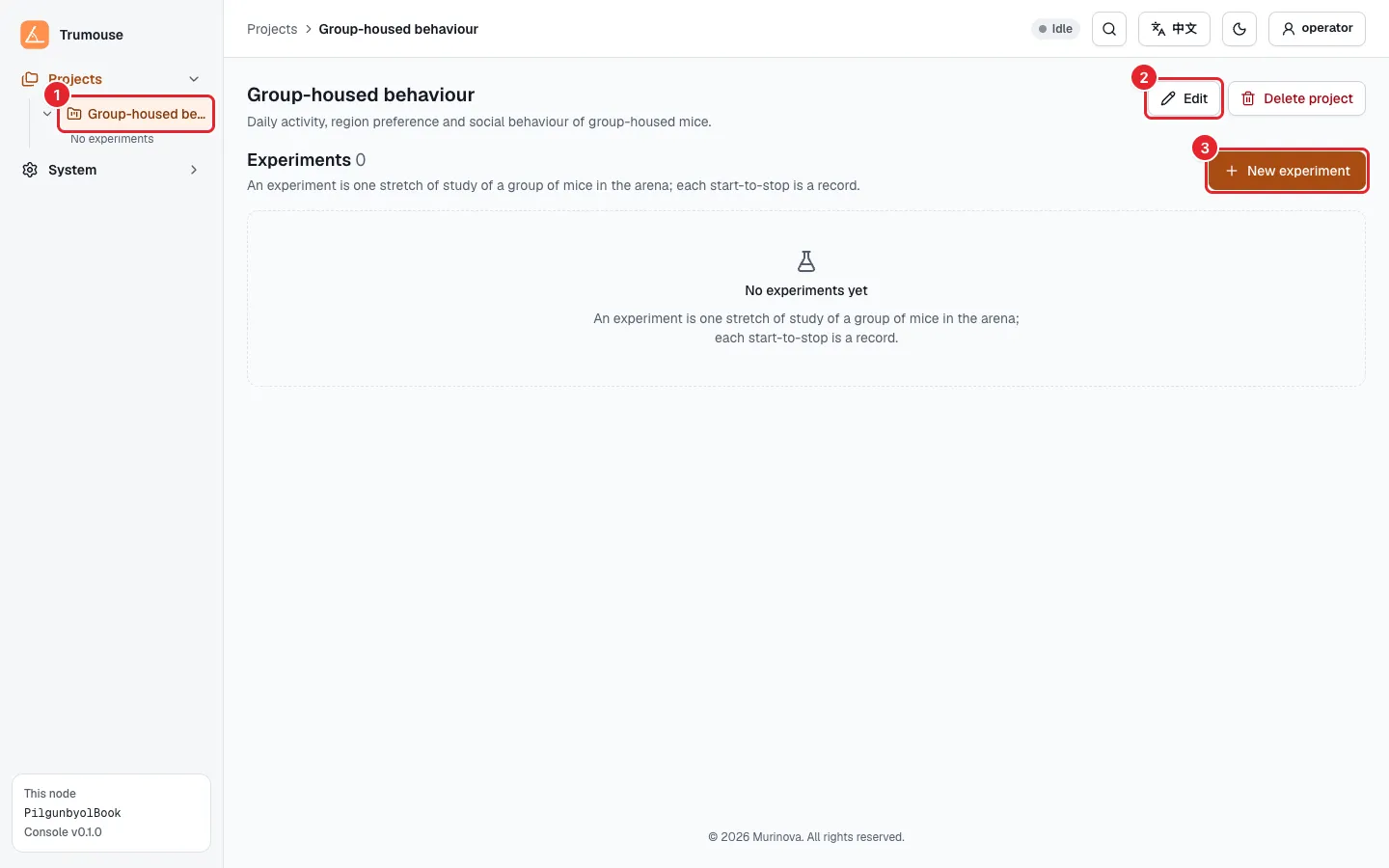
Figure: The new project page
- The new project also appears in the project tree on the left.
- Edit: changes the project name and description. Delete project next to it is described in Deleting Data.
- New experiment; see the next section.
Creating an Experiment and Taking the Arena Photo
Section titled “Creating an Experiment and Taking the Arena Photo”On the project page, click New experiment, fill in the basic details (Figure “New experiment: details”), then take a photo of the arena (Figure “New experiment: arena photo”).
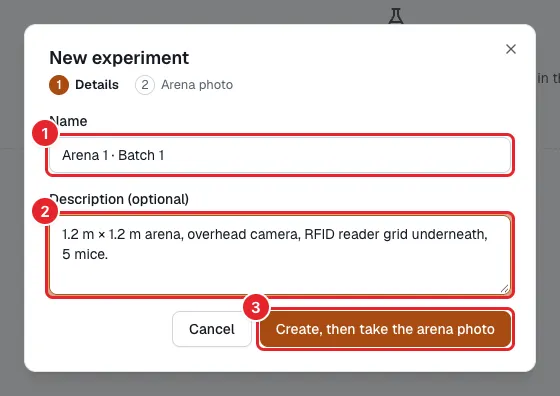
Figure: New experiment: details
- Name: required.
- Description: optional.
- Create, then take the arena photo.
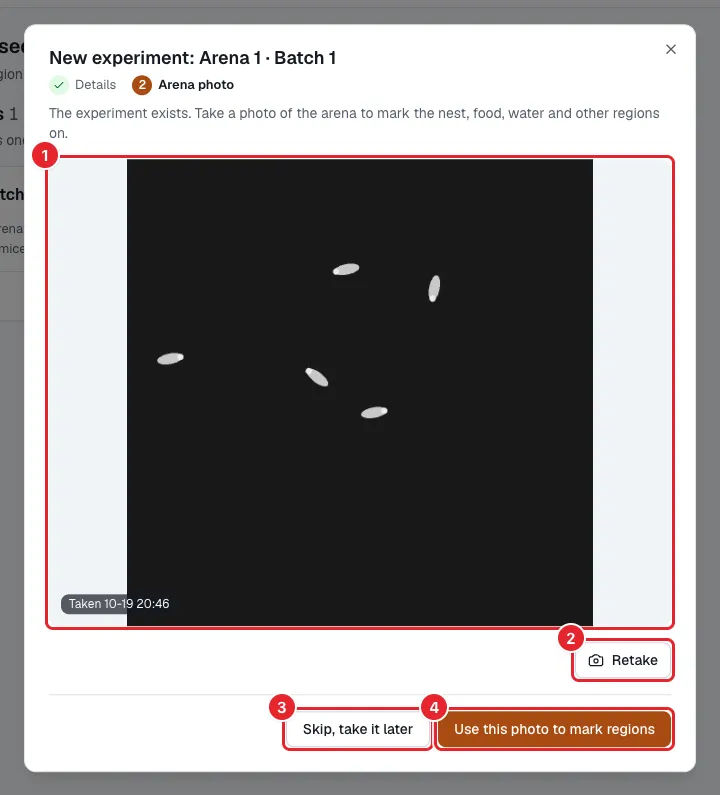
Figure: New experiment: arena photo
- Photo preview.
- Retake.
- Skip, take it later: take the photo later in the Arena & mice tab.
- Use this photo to mark regions: opens the region editor (Marking Arena Regions).
Marking Arena Regions
Section titled “Marking Arena Regions”Regions are the places in the arena you want to analyze, such as the nest, food hopper, water bottle or center zone. The results report each mouse’s dwell time and number of entries per region. The region editor is shown in Figure “Region editor”.
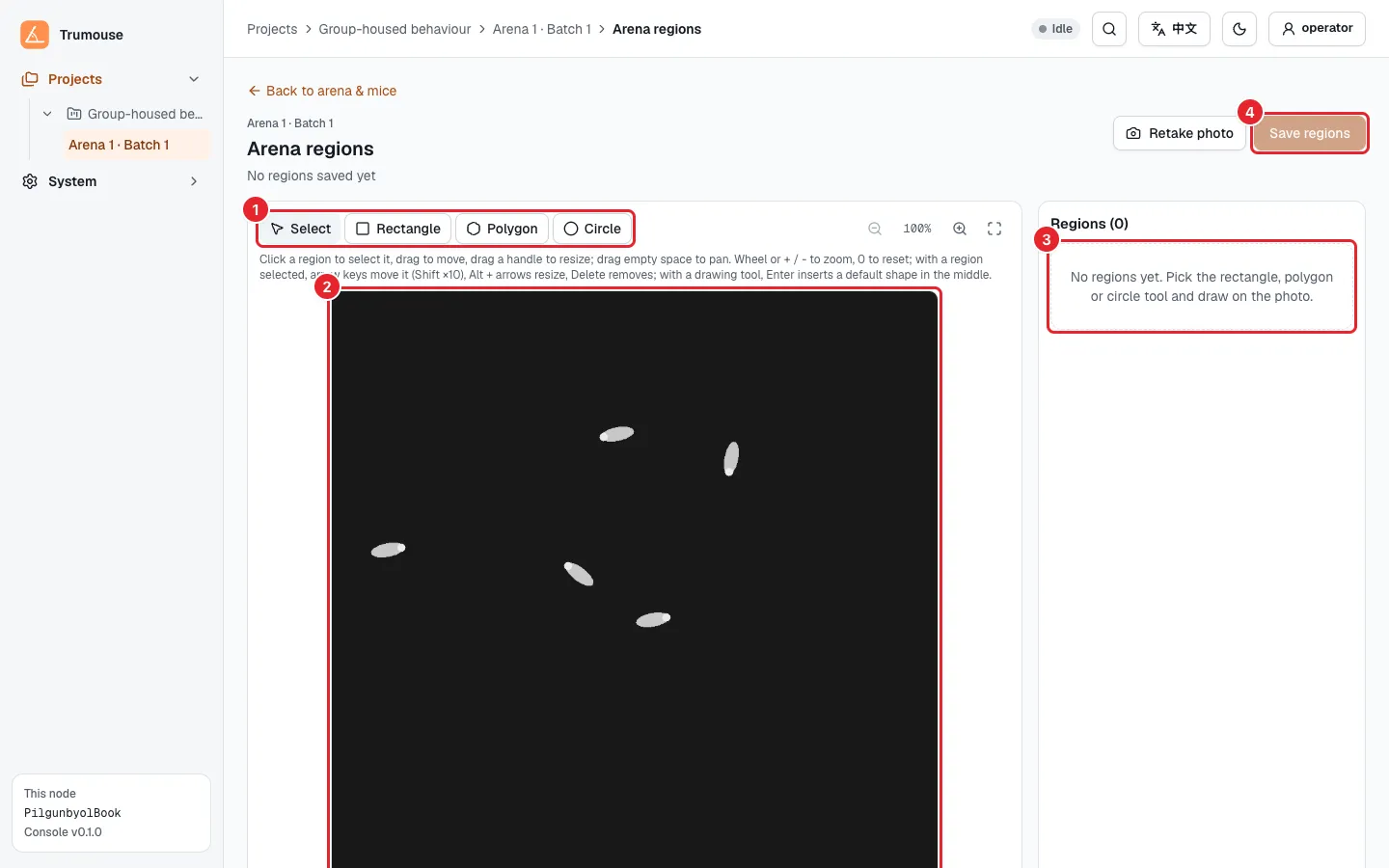
Figure: Region editor
- Drawing tools: Select (V), Rectangle (R), Polygon (P) and Circle (C); the letters are keyboard shortcuts.
- Canvas (the arena photo): draw the regions on the photo. Zoom with the mouse wheel or the buttons in the top-right corner.
- Region list: every region drawn is listed here.
- Save regions: available only when there are unsaved changes.
How to draw each shape is described in Table “Drawing regions”.
Table: Drawing regions
| Shape | How to draw |
|---|---|
| Rectangle | Drag from one corner to the opposite corner |
| Circle | Drag outward from the center |
| Polygon | Click each vertex; finish by double-clicking, pressing Enter or clicking the first point. Backspace removes the last point; Esc cancels |
After drawing, the tool returns to Select. A selected region can be dragged, resized by its handles, nudged with the arrow keys (hold Shift to move 10 pixels at a time) and deleted with Delete.
Each new region is given a color and a name automatically (Figure “Two regions drawn”).
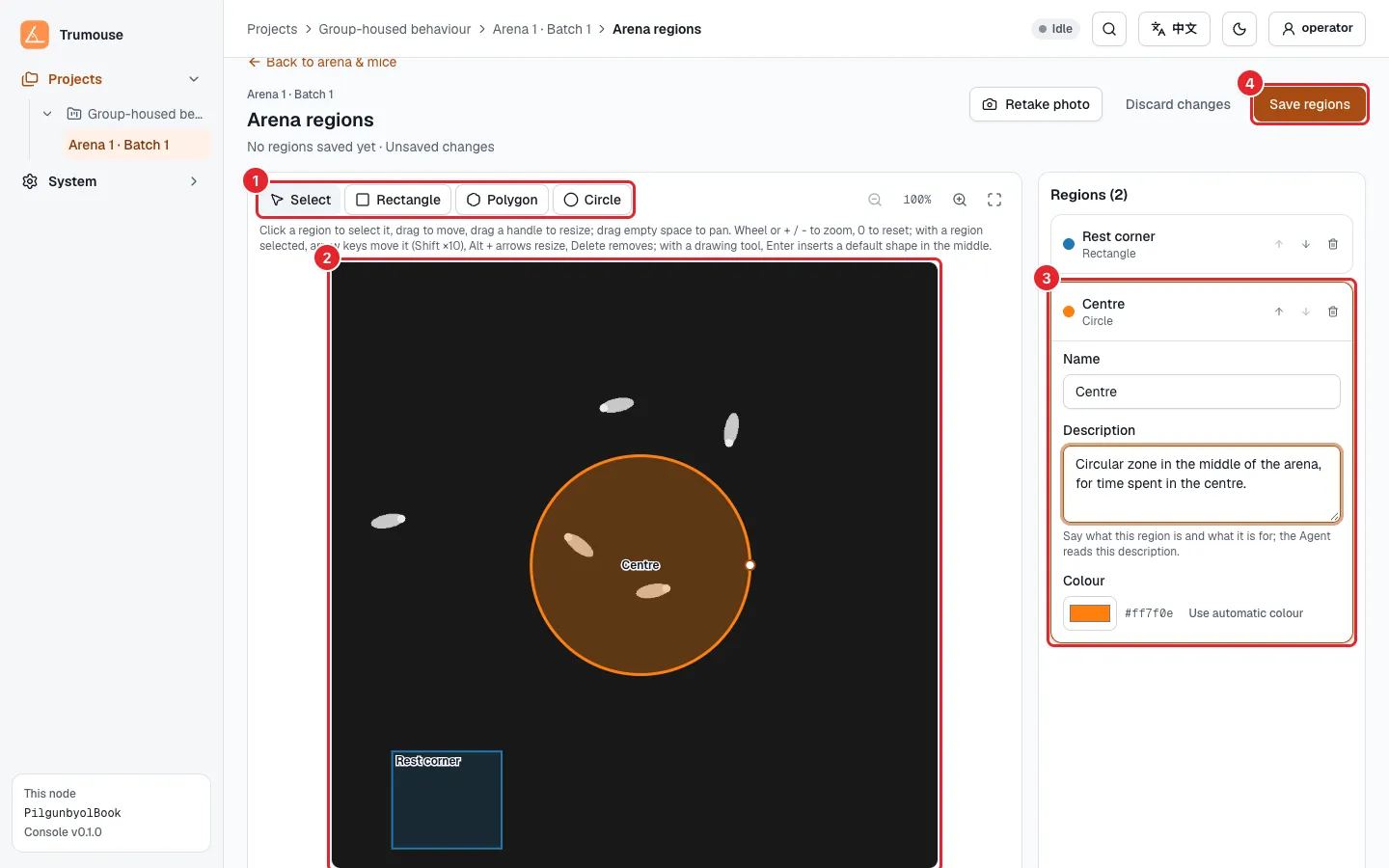
Figure: Two regions drawn
- Drawing tools.
- The regions on the canvas, each with an automatically assigned color and name label.
- Open a region in the region list to fill in its Name (required, must be unique) and Description. Describe what the region is and what it is for; when the project analysis Agent is installed, the Agent reads this description. The list also lets you change a region’s color, move it up or down, or delete it.
- Save regions.
After Save regions is clicked, the top of the dialog lists the regions added, removed and changed (Figure “Saving regions”).
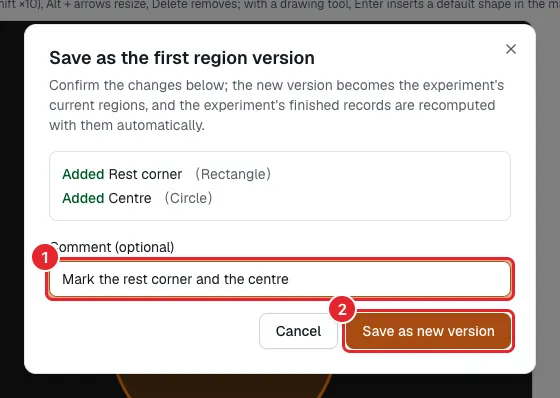
Figure: Saving regions
- Comment (optional): describe what changed, for example “Added water bottle region”.
- Save as new version: every save creates a new version; earlier versions can be compared and restored under Version history below the editor.
After saving, the top of the page shows Regions saved. and the next steps (Figure “Regions saved”).
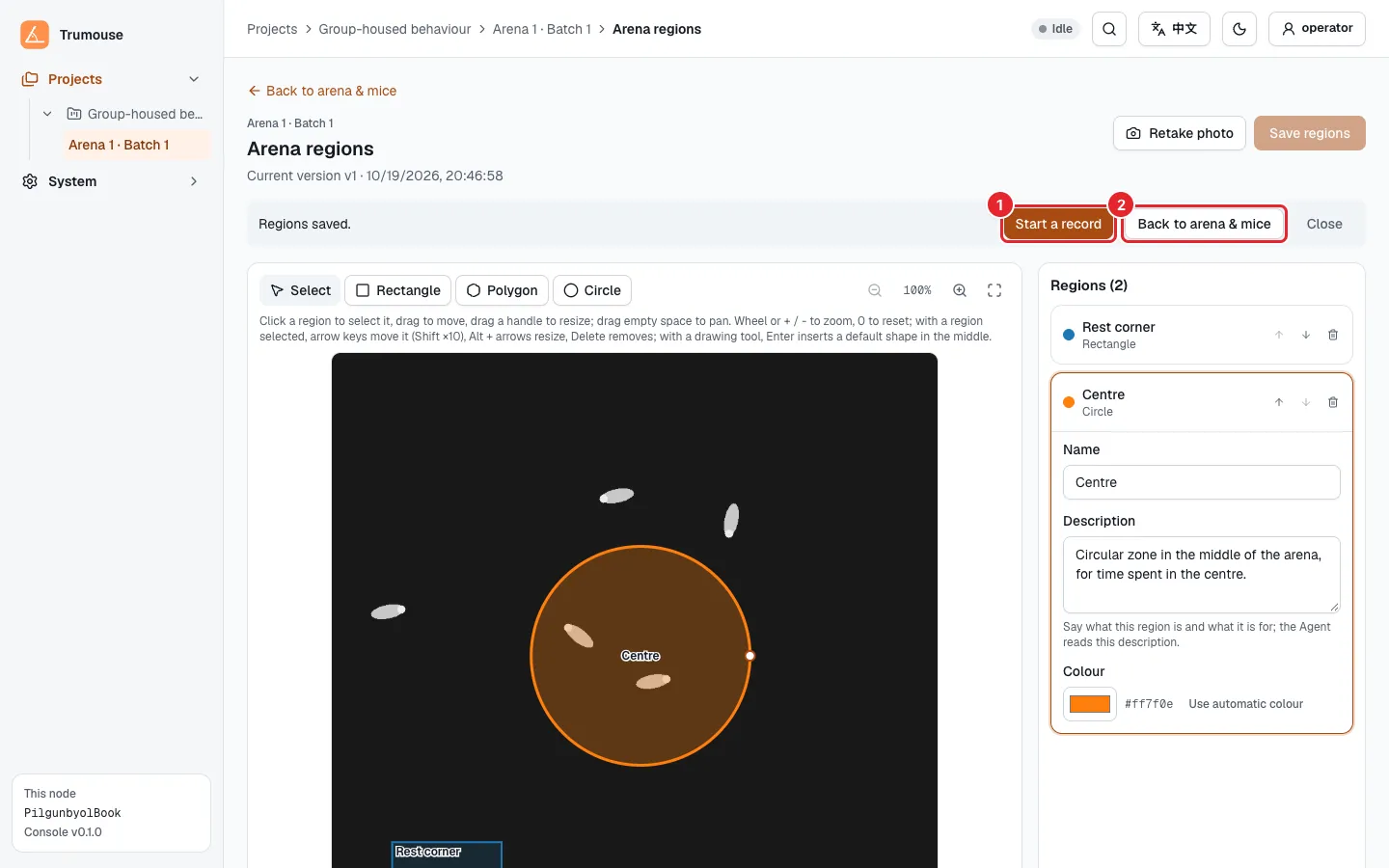
Figure: Regions saved
- Start a record: opens the experiment’s Records tab.
- Back to arena & mice: go back to register the mice (Registering Mice).
Metrics such as the number of entries and the dwell time are computed automatically for every region (Table “Region metrics”).
Table: Region metrics
| Metric | Meaning |
|---|---|
region_time_s / region_time_ratio |
Visible dwell time of the body center in the region, and its proportion |
region_entries |
Number of entries |
region_latency_s |
Latency to first entry |
region_bout_mean_s |
Mean duration of each stay |
region_hidden_s / region_hidden_ratio |
Time spent out of sight in the region, and its proportion. For a region drawn over the nest, this is the time in the nest |
region_hidden_visits |
Number of times the mouse went out of sight in the region |
Registering Mice
Section titled “Registering Mice”The experiment page has three tabs: Records, Arena & mice and Light schedule. Mice are registered in the Arena & mice tab. The upper half of the tab shows the arena (Figure “Arena & mice: the arena”).
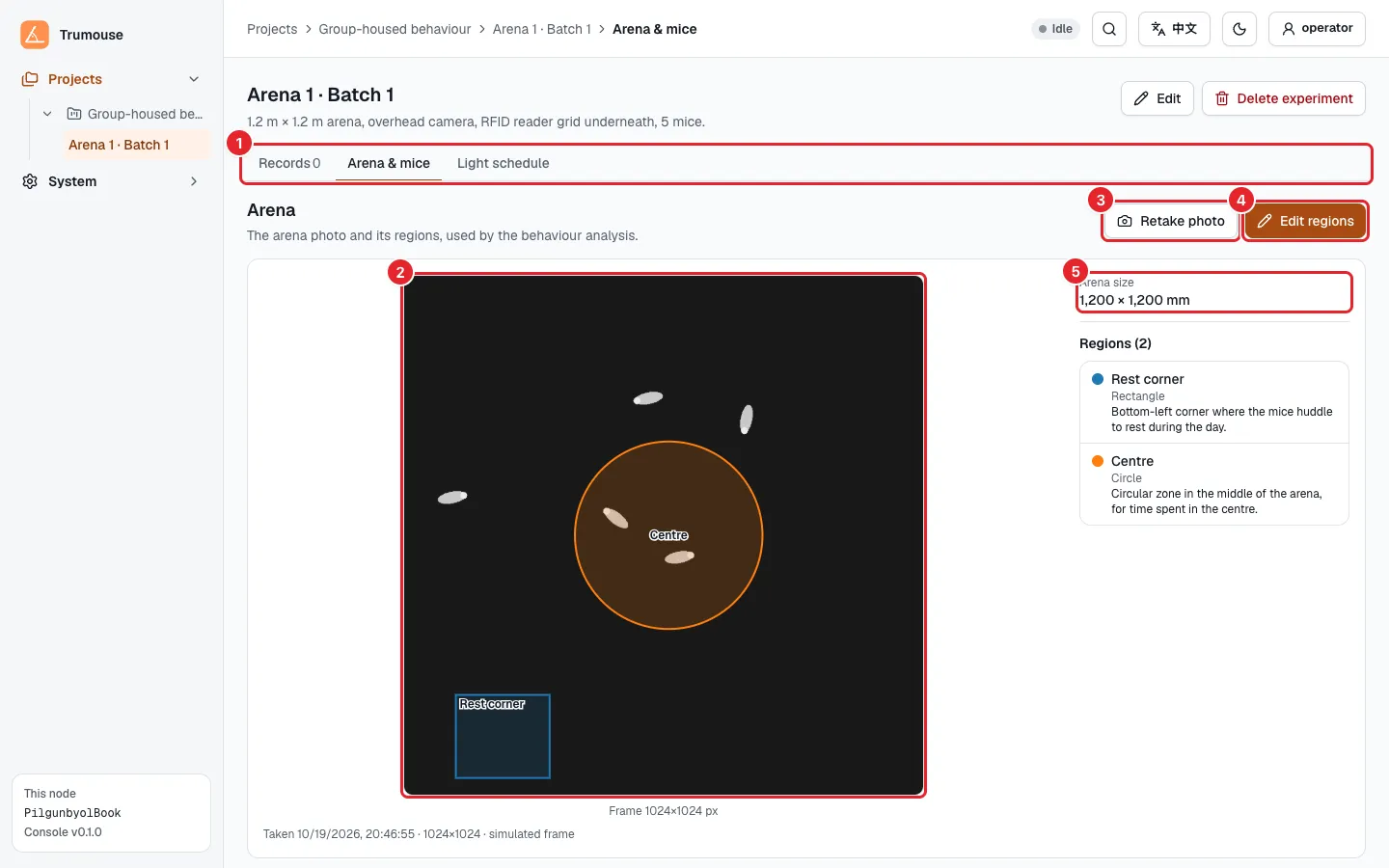
Figure: Arena & mice: the arena
- The three tabs of the experiment page.
- The arena photo with the marked regions.
- Retake photo: retake the photo when the arena layout changes (for example, after moving the water bottle), then adjust the regions.
- Edit regions: opens the region editor.
- Arena size: the real side lengths of the arena in mm, configured at delivery (see Settings Configured at Delivery) and used to convert pixels to centimeters. If the page reports that the arena is not fully set up and distance and speed cannot be computed, contact the administrator.
The lower half is the mouse roster. The easiest way to register mice is to let the Reader Array read the card IDs in the arena (Figure “Detecting the mice in the arena”).
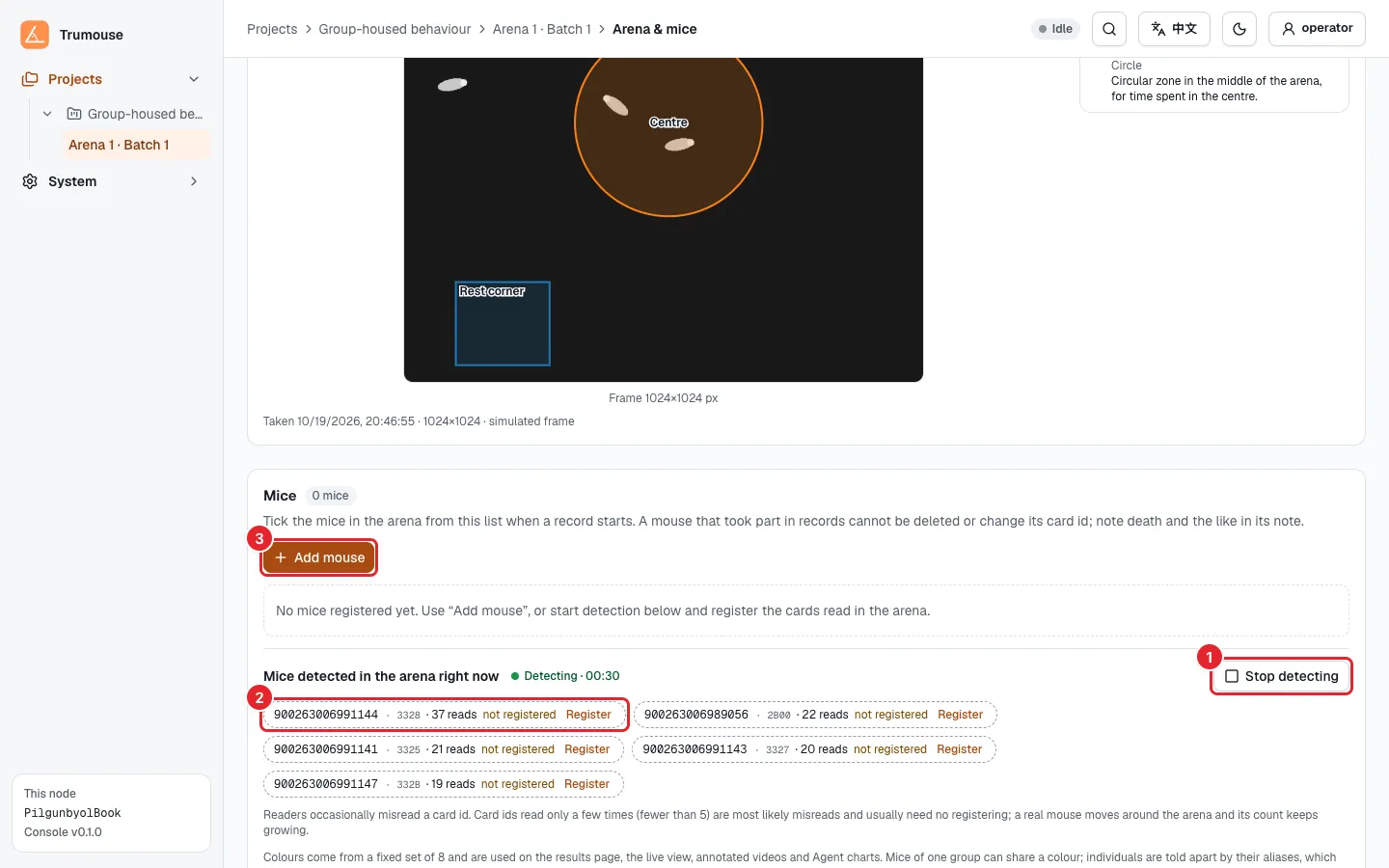
Figure: Detecting the mice in the arena
- Start detecting / Stop detecting: the Console listens to the Reader Array and counts the reads for each card ID, for up to 10 minutes at a time. Click Stop detecting to end earlier.
- Card IDs that have been read but are not yet registered are marked not registered, after the 15-digit number printed on the Passive Transponder Tag. Click Register to open the registration form with the tag number filled in. Card IDs read only a few times are most likely misreads; they are listed separately below and normally need not be registered.
- Add mouse: register a mouse manually.
The registration form is shown in Figure “Registering a mouse”.
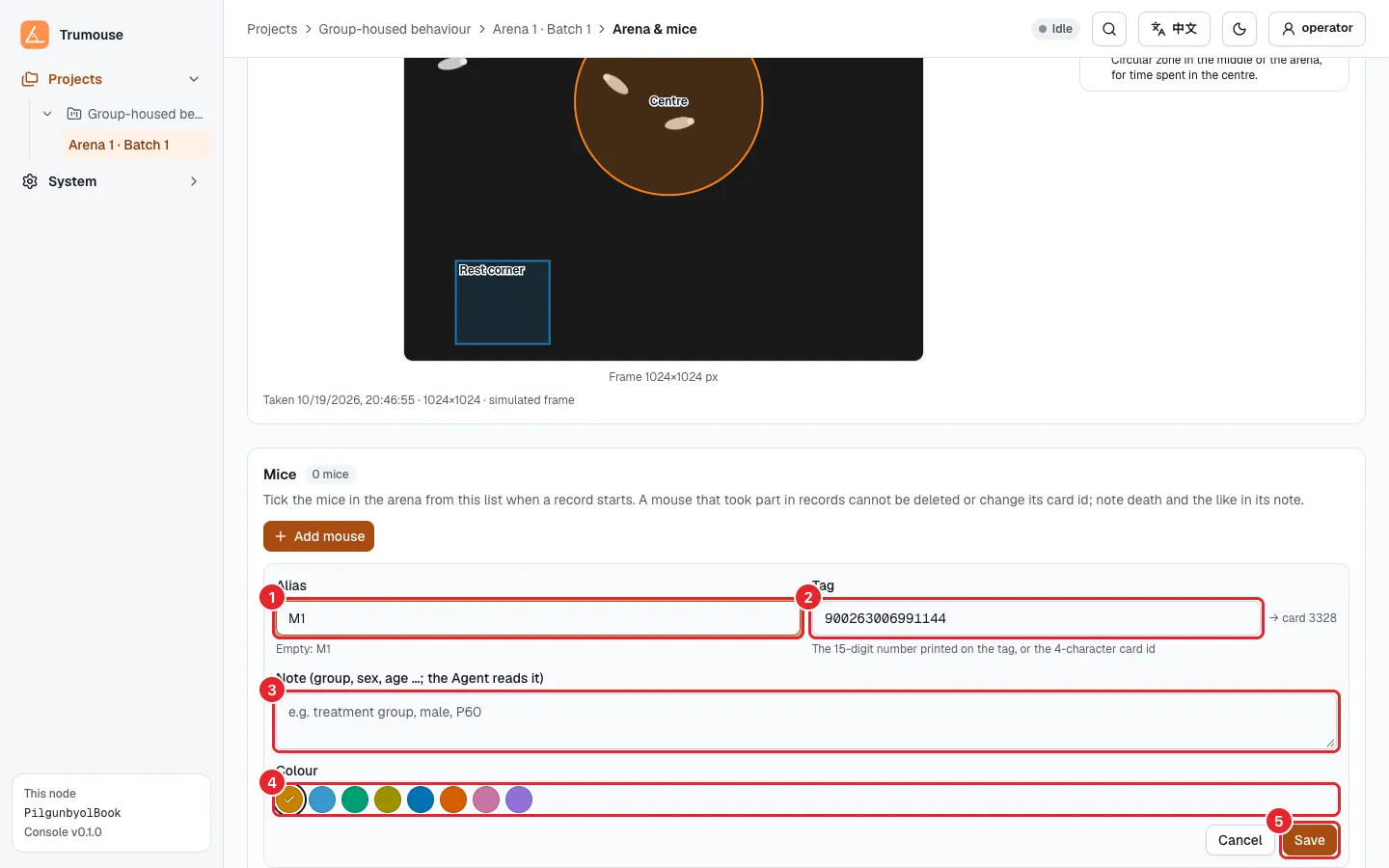
Figure: Registering a mouse
- Alias: optional. If left empty, M1, M2, … are used in order. Results, the live view and annotated videos label mice by alias.
- Tag: required. Enter the 15-digit number printed on the Passive Transponder Tag, or the 4-digit card ID. A 15-digit number is converted to the card ID automatically.
- Note: group, sex, age in days and similar information. Record events such as death here too. When the project analysis Agent is installed, the Agent reads these notes.
- Colour: choose from a fixed set of colors; by default they are assigned in order. Mice in the same group can share a color and be told apart by alias.
- Save: the mouse appears in the roster (Figure “Mouse roster”).
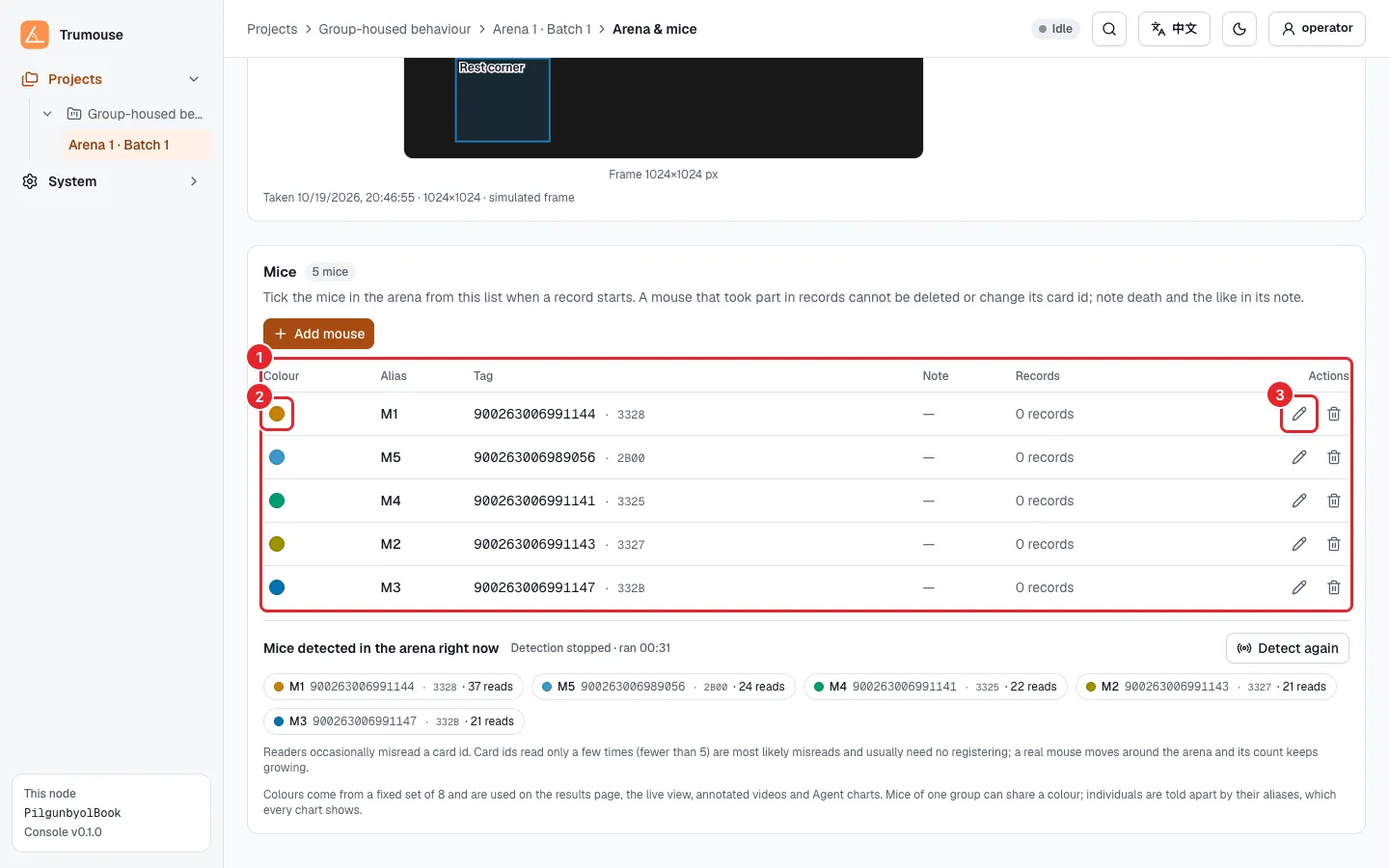
Figure: Mouse roster
- The roster: color, alias, tag, note and number of records for each mouse.
- Click the color dot to change the color.
- Use the pencil icon to edit and the bin icon next to it to delete. A mouse that has taken part in a record cannot be deleted and its card ID cannot be changed; only its alias and note can be edited and its printed number filled in.
Checking the Light Schedule
Section titled “Checking the Light Schedule”The Light schedule tab sets the daily lights-on and lights-off times and how the infrared lights and fans are switched. Analysis uses the schedule to split records into light and dark phases (Figure “Light schedule”).
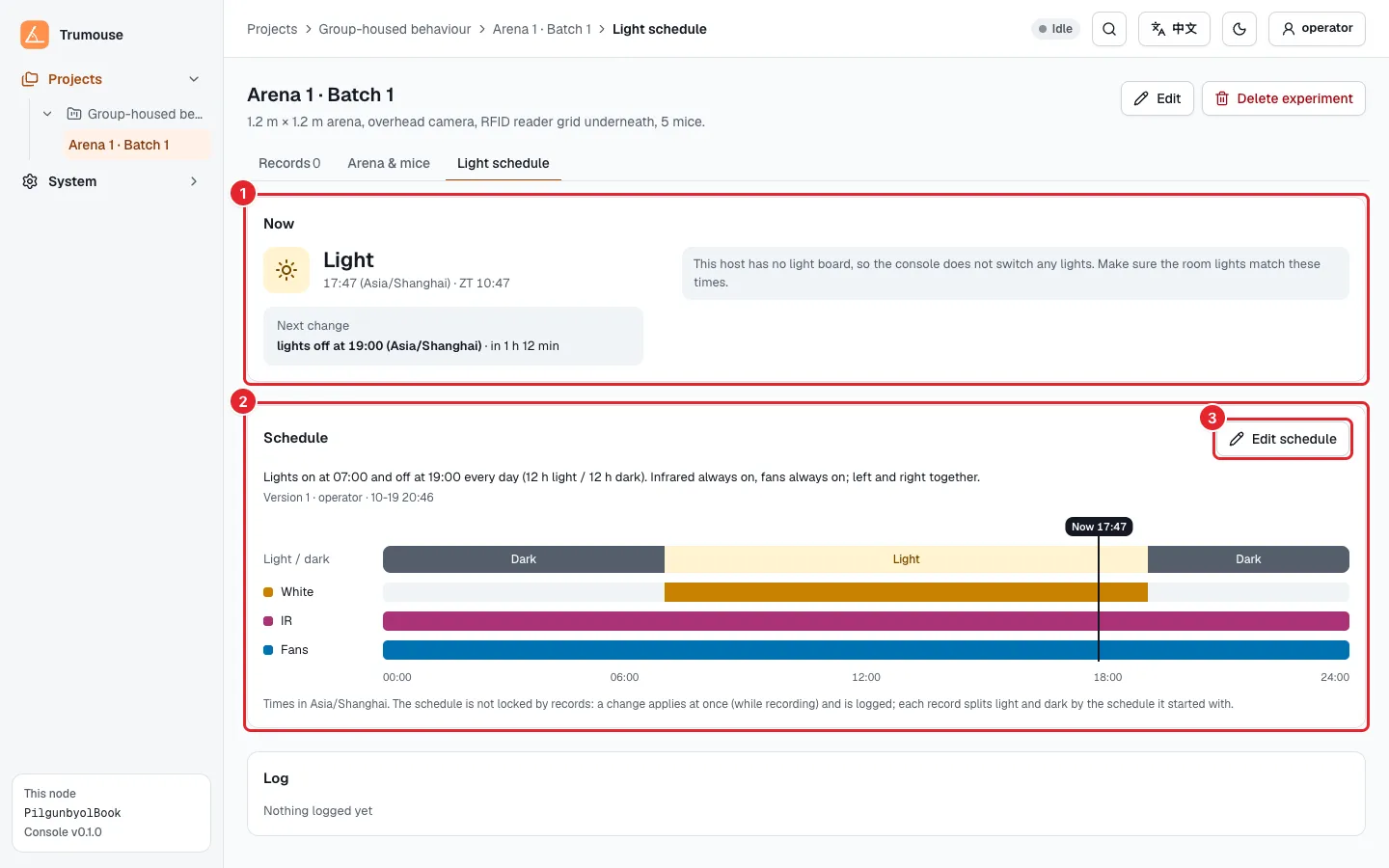
Figure: Light schedule
- Now: whether it is currently the light or dark phase, the ZT time and the next change. When a light board is connected to the Compute Unit, the actual state of each output is also shown. Without a light board (as in the screenshot), the page states that the Console does not switch any lights; in that case, make sure the room lights follow the times shown here.
- Schedule: a text description of the current schedule, its version and a 24-hour timeline.
- Edit schedule: opens the schedule editor (Figure “Editing the schedule”).
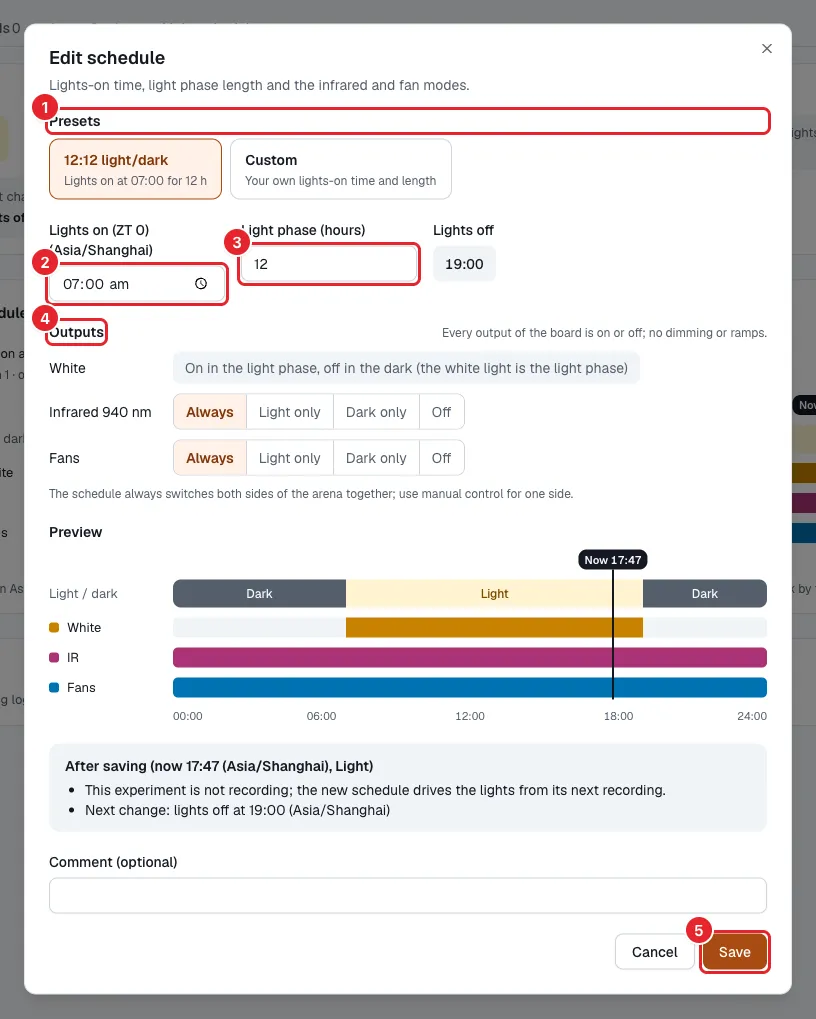
Figure: Editing the schedule
- Presets: 12:12 light/dark (lights on at 07:00 for 12 h) or Custom.
- Lights on (ZT 0).
- Light phase (hours). The lights-off time is calculated automatically.
- Outputs: white light is always on in the light phase and off in the dark phase; for the infrared lights and the fans, choose always on, light phase only, dark phase only or off.
- Save: creates a new version.
Starting a Record
Section titled “Starting a Record”Open the Records tab. Before the first record, the tab lists three items worth a look before starting (Figure “The Records tab before the first record”).
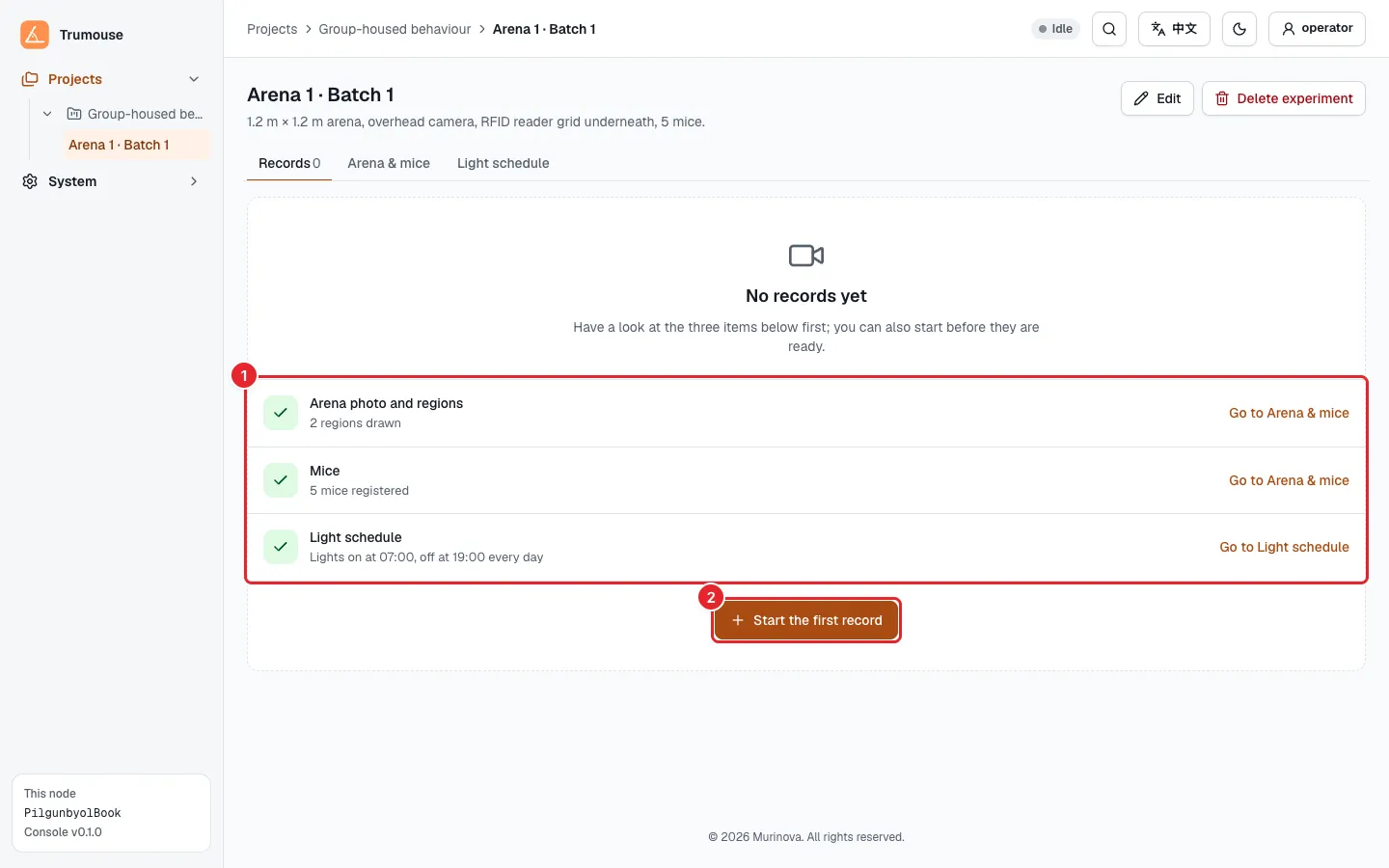
Figure: The Records tab before the first record
- Before-start checklist: each item has a link on the right to the matching tab; what each item shows is listed in Table “Before starting”.
- Start the first record. Once records exist, the button is New record.
Table: Before starting
| Item | Shows |
|---|---|
| Arena photo and regions | The number of regions drawn, or “None yet (can be added later; results are recomputed then)” |
| Mice | The number of mice registered, or “None yet (you can also register them when starting a record)” |
| Light schedule | The daily lights-on and lights-off times |
None of these items prevents a record from starting. Clicking Start the first record opens the new record dialog (Figure “New record”).
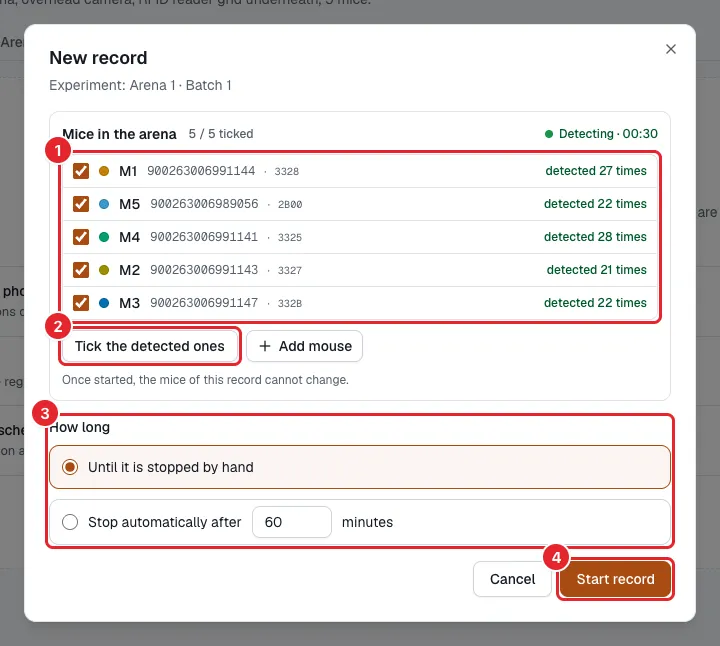
Figure: New record
- Mice in the arena: one row per mouse in the roster, followed by the number of times the readers detected it. Tick the mice that are in the arena for this record. For the first record, all are ticked by default; afterwards, the ticks from the previous record are reused.
- Tick the detected ones: ticks only the detected mice. If there is an unregistered mouse in the arena, use Add mouse next to it; saving adds it to the roster and ticks it.
- How long: by default Until it is stopped by hand; alternatively, stop automatically after a set number of minutes.
- Click Start record.
The Console then runs the pre-start checks: Industrial Camera, database, disk, inference speed and others. On first use, the inference speed is measured first, which can take a minute or two. If a check fails, the dialog explains why; resolve the problem as indicated and click again. If no mouse is ticked, the button reads Tick the mice in the arena first and cannot be clicked.
If the inference speed check fails, the dialog explains that this computer cannot analyze the frames as fast as the camera delivers them and offers Measure again and Start anyway. If you start anyway, the analysis falls further behind and finishing after the stop takes a long time. If this happens often, contact the administrator.
Watching the Live Monitor
Section titled “Watching the Live Monitor”Once the record has started, the record in progress appears at the top of the Records tab (Figure “Recording”).
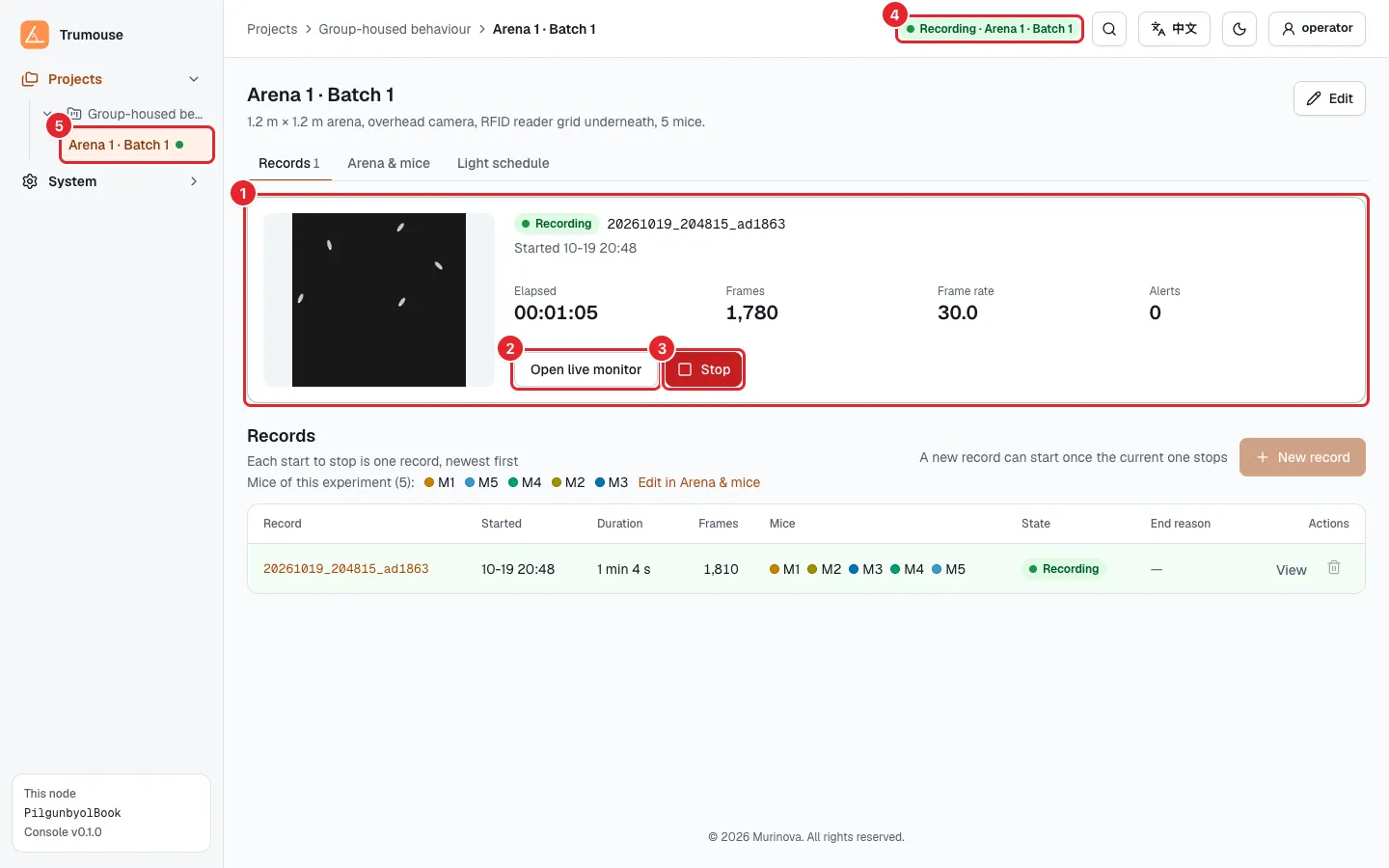
Figure: Recording
- Record-in-progress card: camera image (refreshed every 3 seconds), record ID, start time, elapsed time, frames, frame rate and number of alerts.
- Open live monitor: opens the record page of this record.
- Stop; see Stopping a Record.
- The top bar shows Recording and the experiment name.
- A green dot appears next to the experiment in the project tree.
The Record contents tabs at the top of the record page are Results, Alerts and Environment. While recording, the Results tab shows the live monitor (Figure “Live monitor”).
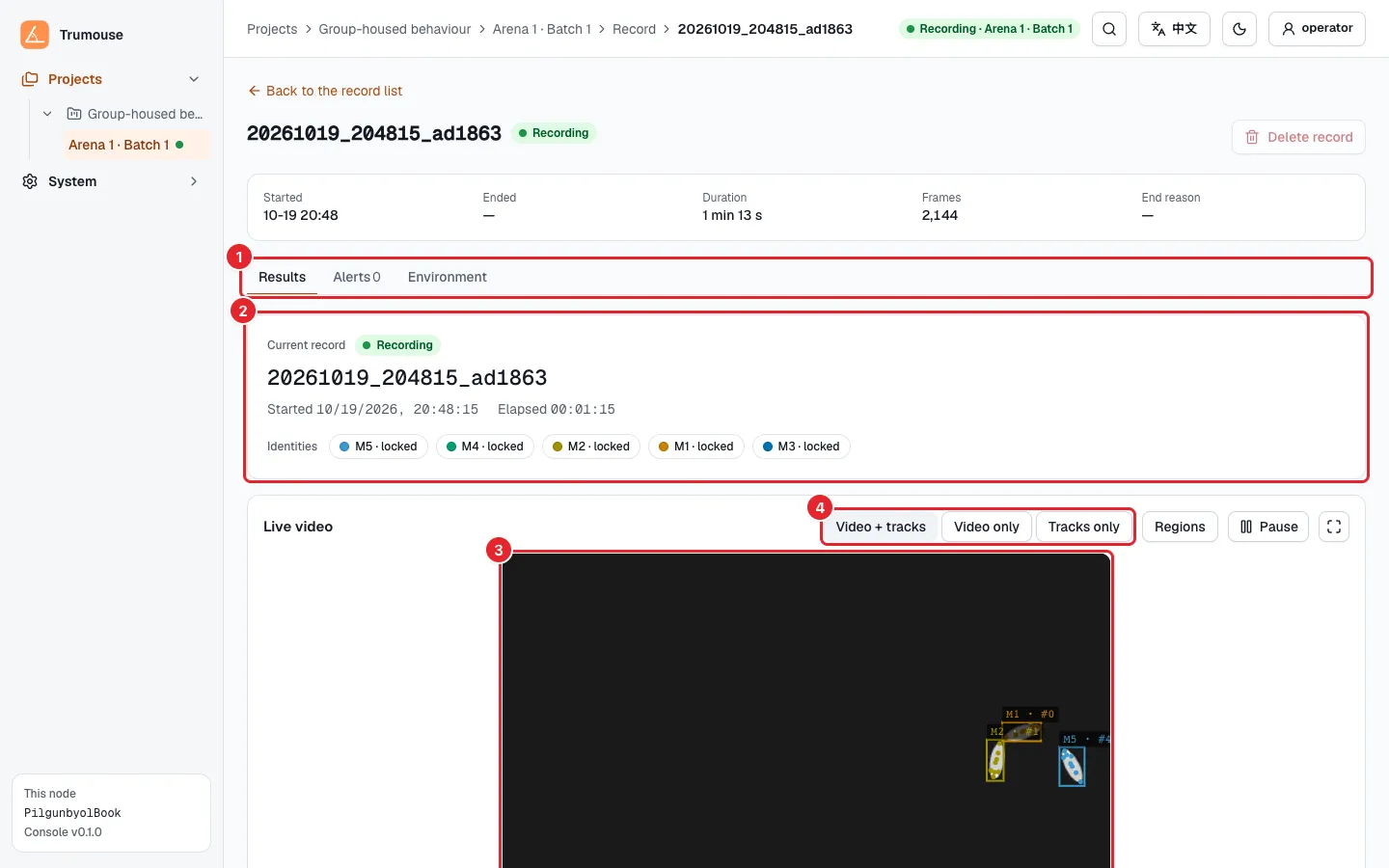
Figure: Live monitor
- Record contents tabs.
- Current record: start time, elapsed time and each mouse’s identity state (locked or pending).
- Live video: the camera image with the tracking boxes and aliases overlaid. When inference lags behind, the view notes that inference is a few seconds behind and shows the video first.
- Display: Video + tracks, Video only or Tracks only. The buttons to the right overlay the regions, pause the video and show it full screen.
Further down are the open alerts, the environment (temperature, humidity and others) and the lights. At the bottom is Diagnostics: capture rate, frames captured (including the number of frame-number gaps), analysis backlog and free disk space, followed by service health, trend curves, database, a reader activity heat map and host status. Refer to these when reporting a problem.
If a card ID that was not ticked keeps being read, a red message appears at the top of the page stating that the card is being read but was not ticked and that the mouse will not be identified in this record. If that mouse really is in the arena, stop the record, then start a new one with it ticked.
Stopping a Record
Section titled “Stopping a Record”The Stop button is only on the record-in-progress card in the Records tab (Figure “Recording”); the live monitor does not have one. Clicking it opens a confirmation dialog (Figure “Stopping a record”).
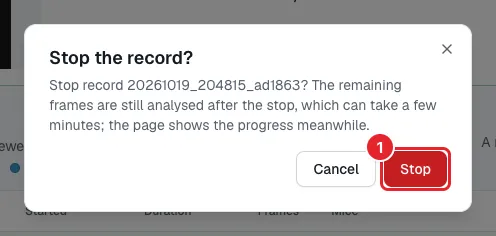
Figure: Stopping a record
- Stop: the remaining frames are still analyzed after the stop, which can take a few minutes; the page shows the finishing-up progress meanwhile.
After confirming, the card shows Stopping…. When there is a large inference backlog, the Results tab of the record page shows Finishing up and the number of remaining frames.
After stopping, the button changes to Force stop. Use it only if you cannot wait:
- First Force stop: skips the analysis of the remaining frames. The raw video is saved, and the skipped part can be computed later.
- If the record still does not stop, forcing again may lose data that has not been saved yet.
When finishing is complete, the card disappears, the top bar returns to Idle, and the record list gains a row with the state Finished and the end reason Stopped by hand (or Stopped on schedule when a duration was set).