
Page Reference and FAQ
Project List and Project Page
Section titled “Project List and Project Page”The project list is shown in Figure “Project list”.
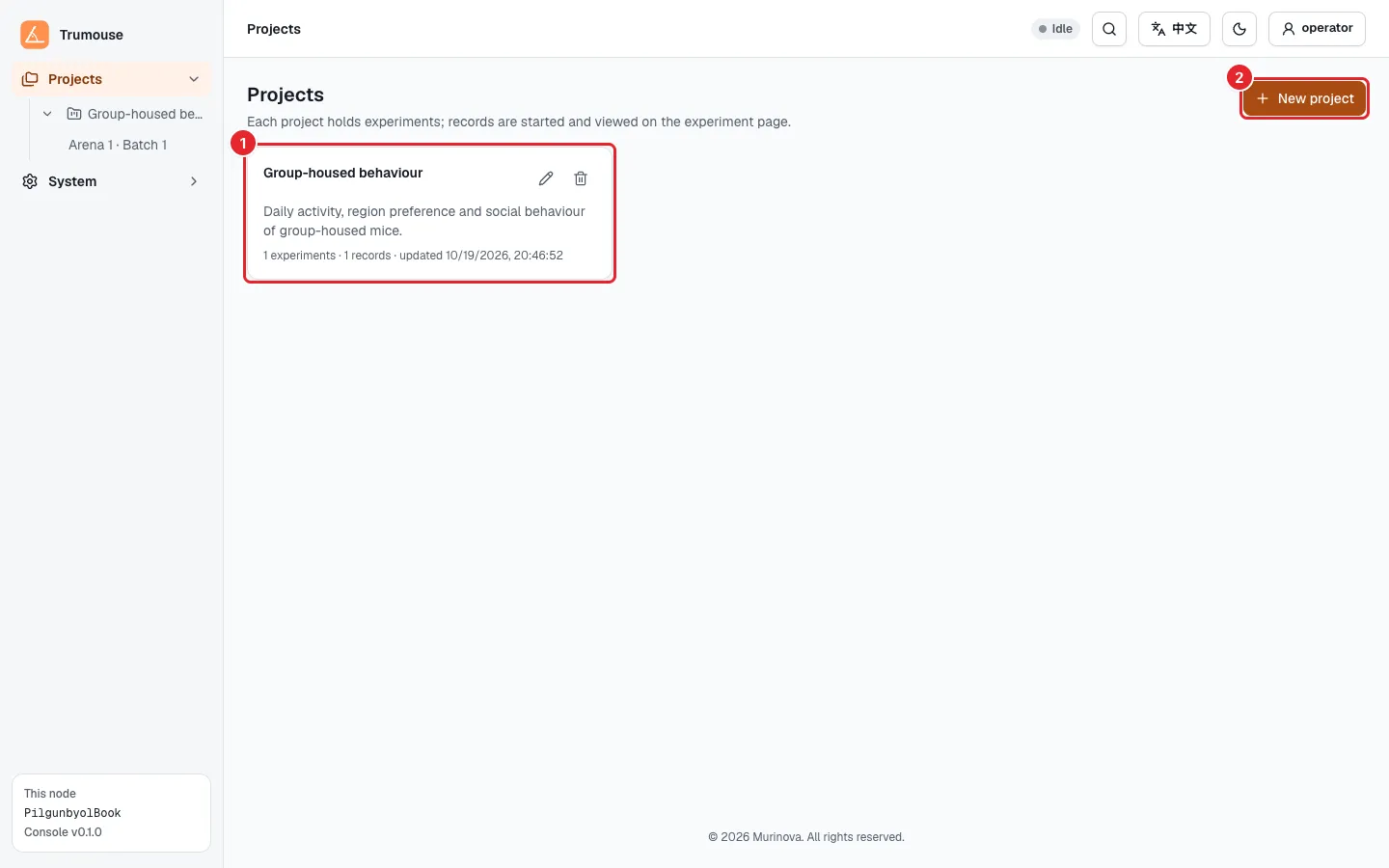
Figure: Project list
- Project cards: one per project, showing the name, description, number of experiments, number of records and last update. The pencil and bin icons in a card’s top-right corner edit or delete the project.
- New project.
The project page is shown in Figure “Project page”.
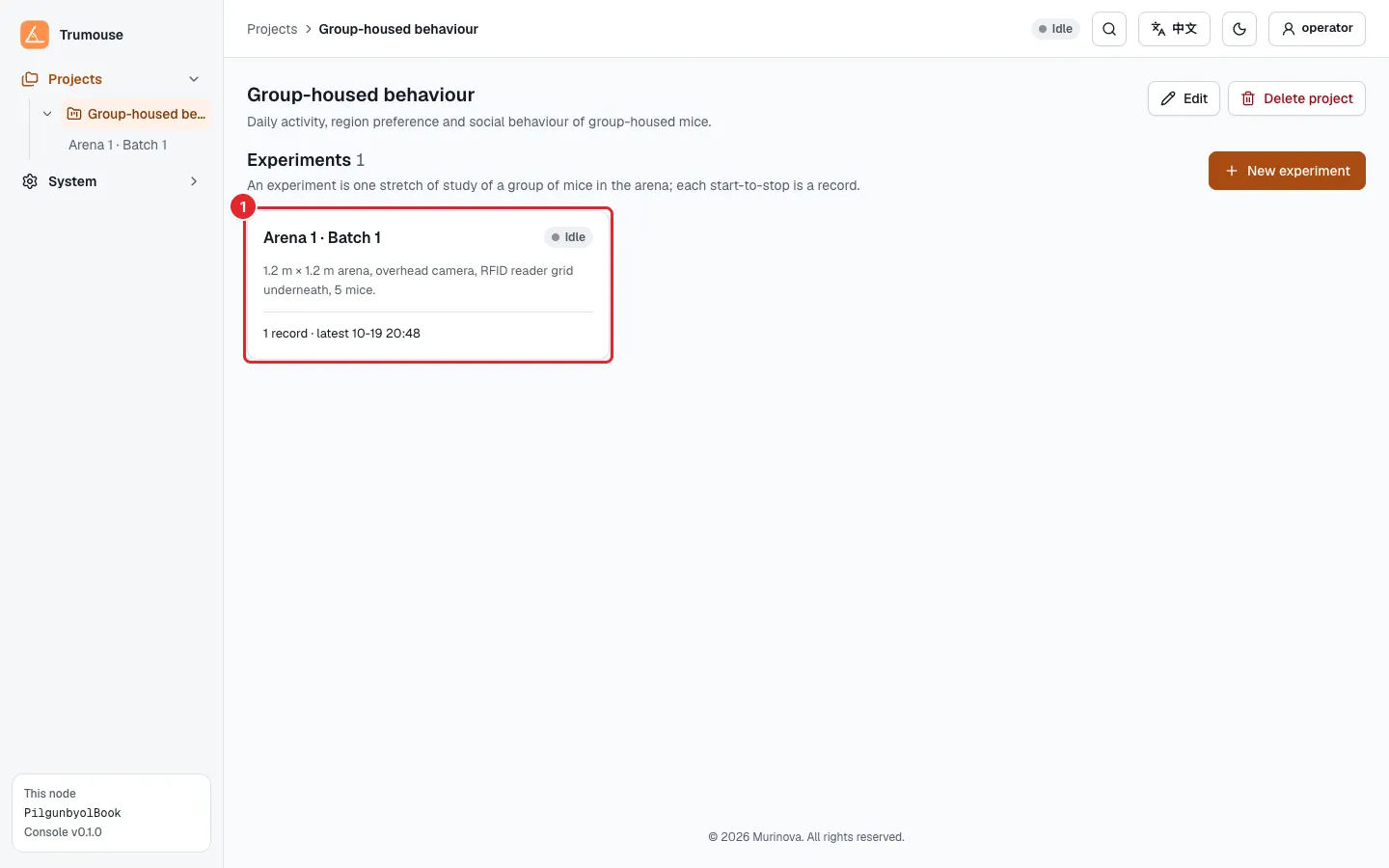
Figure: Project page
- Experiment cards: one per experiment, showing the name, state (recording or idle), description, number of records and the time of the latest record. Click a card to open the experiment.
Experiment Page
Section titled “Experiment Page”The top of the experiment page shows the experiment name, description, Edit and Delete experiment (not shown while the experiment is recording), followed by three tabs:
Table: Experiment page tabs
| Tab | Content |
|---|---|
| Records | Before-start checklist, record in progress, record list, new record |
| Arena & mice | Arena photo, regions, arena size, mouse roster, card detection |
| Light schedule | Current light/dark phase, schedule, manual control (while recording), log |
Record Page
Section titled “Record Page”Table: Record page tabs
| Tab | While recording | After the record ends |
|---|---|---|
| Results | Live monitor (Watching the Live Monitor) | Post-processing progress and results (Results and Data Export) |
| Alerts | Alert list; alerts can be acknowledged | Same; tick Open only to filter |
| Environment | Temperature, humidity, ammonia, carbon dioxide, TVOC, noise and illuminance curves | Same |
Delete record at the top right of the record page is described in Deleting Data.
System
Section titled “System”System on the left contains Account (Figure “System: Account”) and Agent settings.
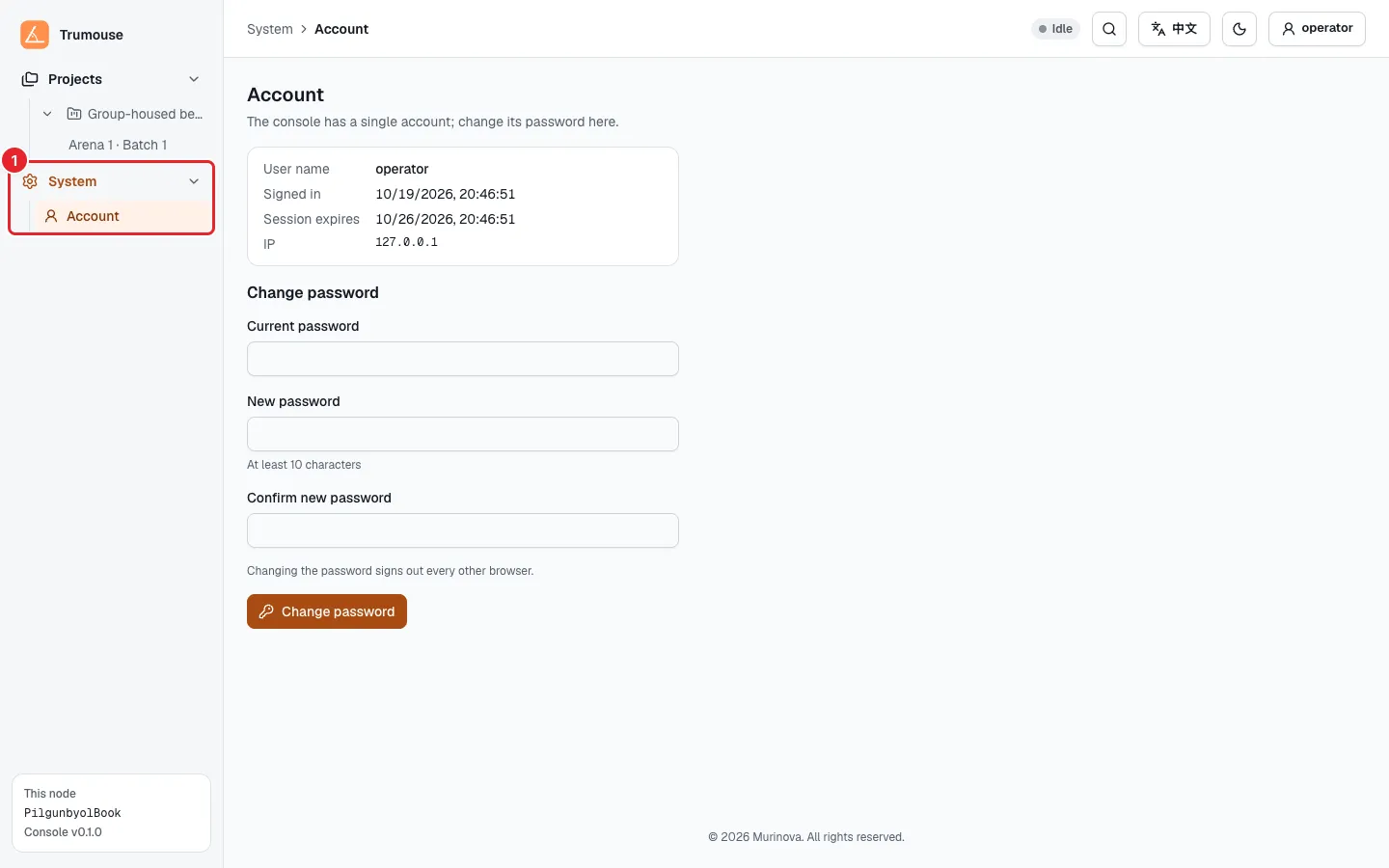
Figure: System: Account
- Account under System: current login details and password change (new password at least 10 characters). Changing the password signs out sessions in other browsers.
Agent settings is shown only when the project analysis Agent is installed on the Compute Unit. It holds the model service and key used by the Agent, set by the administrator. When the Agent is installed, an Agent panel on the right of the project page answers questions about the project’s records, regions and data quality.
Command Palette
Section titled “Command Palette”Press ⌘K (Mac) or Ctrl+K, or click the magnifier icon in the top bar, to open the command palette (Figure “Command palette”).
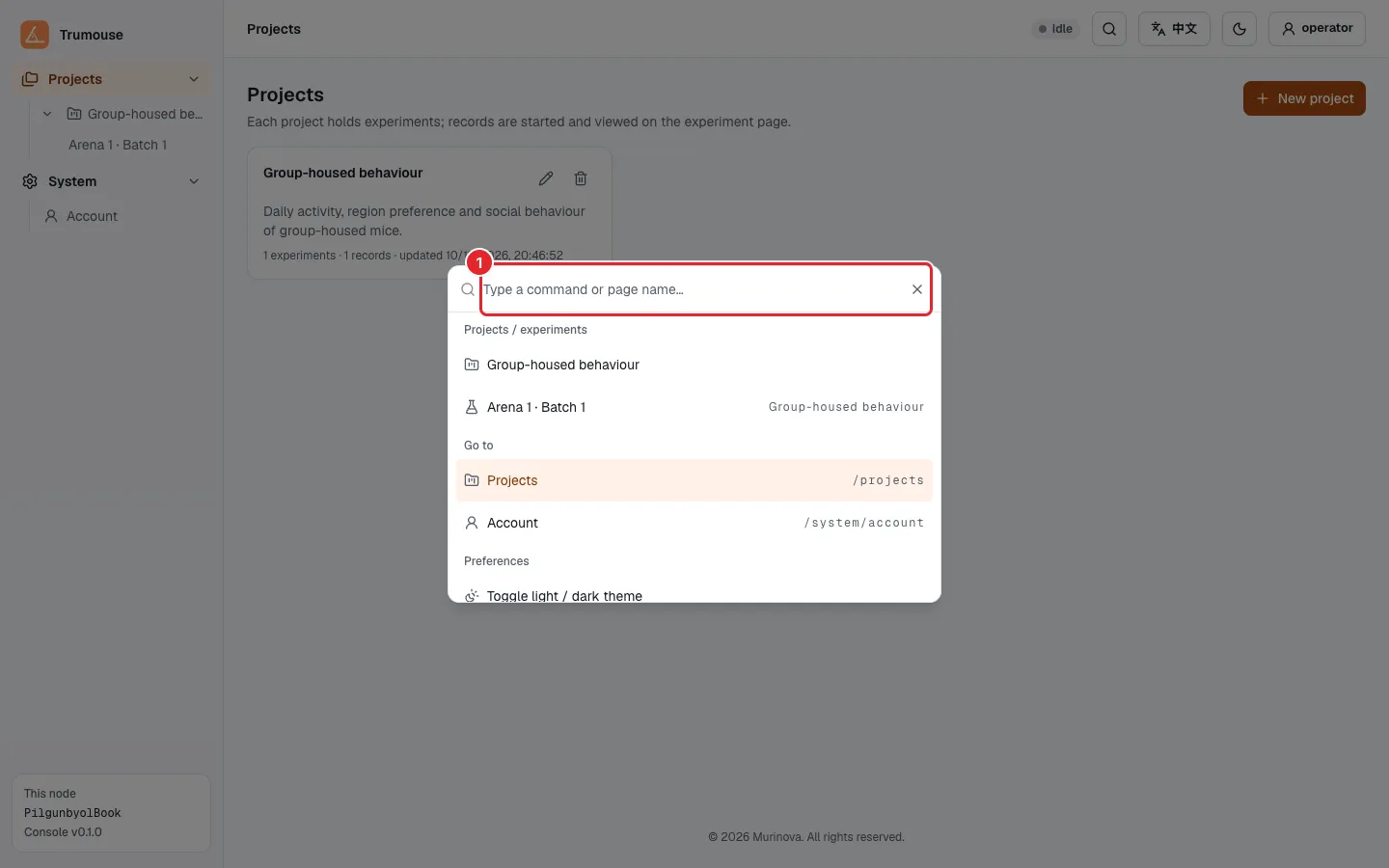
Figure: Command palette
- Type a project, experiment or page name to go to it directly. The list below shows the projects and experiments, frequently used pages, and preferences such as switching the theme and language.
Deleting Data
Section titled “Deleting Data”Deleting a record: click the bin icon on its row in the record list, or Delete record on the record page. A record in progress cannot be deleted; stop it first. The dialog first summarizes the data to be deleted (Figure “Deleting a record”).
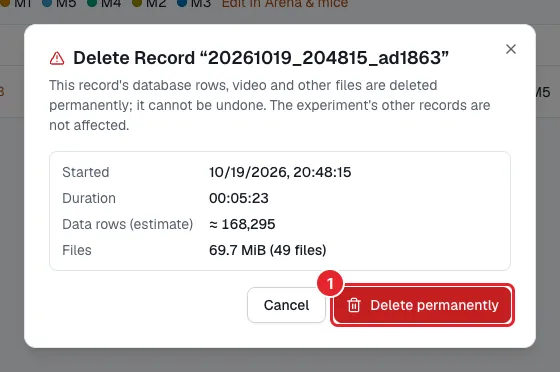
Figure: Deleting a record
- Check the start time, duration, number of data rows and file size, then click Delete permanently.
Deleting an experiment or project: click Delete experiment on the experiment page or Delete project on the project page. All records below it are deleted as well. Step 1 shows the summary; click Continue. Step 2 asks you to type the experiment or project name to confirm; then click Delete permanently. Deletion is not possible while a record below it is in progress.
Deletion runs in the background; you can close the dialog once it is confirmed.
Frequently Asked Questions
Section titled “Frequently Asked Questions”Table: Console FAQ
| Symptom | Cause | Action |
|---|---|---|
| New record is unavailable | The reason is shown next to the button: this experiment is already recording, or another experiment is recording | Stop the record in progress (a link is provided). For any other reason, contact the administrator |
| The pre-start checks failed | The dialog explains why. Common causes: the Industrial Camera is not connected or is in use by another program, or the disk is low on space | Resolve the problem as indicated and try again; if it cannot be resolved, contact the administrator |
| The computer cannot analyze the frames as fast as the camera delivers them | The Compute Unit’s inference speed is insufficient | Click Measure again; if the check still fails, Start anyway is possible, but finishing after the stop will be slow. If this happens often, contact the administrator |
| No arena photo can be taken | The Industrial Camera is not connected or is in use | Check the cable and try again, or skip for now and retake the photo later in Arena & mice |
| Card detection does not find a mouse | The mouse is not moving (for example, asleep during the day) or is not above an LF Reader Module | Register it manually with Add mouse using its tag number, and tick it when starting the record |
| A mouse was not ticked when the record started | The list of ticked mice cannot be changed after the record starts | Stop the record, then start a new one with the mouse ticked |
| The results have no region metrics | No regions have been marked for the experiment | Mark and save regions in Arena & mice; finished records are recomputed automatically |
| The arena is reported as not fully set up, so distance and speed cannot be computed | The arena settings made at delivery are incomplete | Contact the administrator |
| A note above the results says the record was interrupted unexpectedly | A power cut, program crash or similar event during the record | The results cover only the part before the interruption; see the Alerts tab for details. If this happens often, contact the administrator |
| The page shows “Cannot reach the console backend” | The Console is not running on the Compute Unit, or the network is down | Click Retry now; if the problem persists, contact the administrator |